Why Does My iPhone Say "Accessory Not Supported"?
2025-12-16 15:02:22
Messages like “Accessory Not Supported” often appear at the worst possible moment, such as when you urgently need to charge before heading out. This alert does not usually mean your phone is broken, but rather that something in the charging chain is not communicating properly. Charging today relies on constant data exchange between the phone, cable, and power source to confirm safety and compatibility. If even one element fails that check, the system blocks the connection to prevent damage. In this article, we will patiently explain what causes this warning, how to fix it step by step, and how to reduce the chance of seeing it again.

Reason 1: You're Using an Uncertified or Damaged Cable
Cables may look simple, but inside they contain small components that help your phone recognize safe accessories. Over time, bending the cable near the connector, wrapping it too tightly, or using it while charging can damage these internal parts. When that happens, the phone may no longer trust the cable, even though electricity can still flow. Many users notice the warning appears only with one specific cable and disappears when switching to another. This is often a clear sign that the cable itself, not the phone, is the root of the problem.
Reason 2: There's Dirt or Damage in the Connection
How to Safely Clean Your iPhone's Lightning Port
Daily life exposes phones to pockets, bags, and dusty environments, making charging ports a natural place for debris to collect. Lint and dust can block the connector pins, causing incomplete contact that triggers warning messages. Cleaning the port carefully with a dry wooden toothpick or soft brush can restore a solid connection. It is important to be gentle and avoid metal tools, which can damage internal components. Many people are surprised to find that a quick cleaning solves a problem they assumed was electrical.
Check for Bent Pins or Physical Damage
Physical damage inside the port is less common but more serious. Bent pins can occur if a cable is forced in at an angle or if debris is pushed deeper during cleaning. When pins do not align properly, the phone may fail its accessory check and show repeated alerts. Users might notice charging only works intermittently or stops when the cable moves slightly. In such cases, professional inspection is often safer than trying to fix the port at home.
Reason 3: A Software Glitch or Outdated Version
The Simple Restart That Often Fixes the Issue
Sometimes the problem is not physical at all but caused by a temporary software glitch. Phones run many background processes that manage power, accessories, and safety checks. Restarting clears temporary errors and forces the system to reload these processes from scratch. This simple step often resolves unexplained warnings that appeared suddenly. It is an easy first action before assuming hardware failure.
Why Updating iOS Can Restore Compatibility
Software updates often include fixes for charging and accessory detection. As accessories evolve, the system needs updated rules to recognize them correctly. An outdated version may incorrectly flag safe accessories as unsupported. Keeping the phone updated ensures compatibility checks are current and more accurate. Many users find that regular updates reduce the frequency of charging-related warnings over time.
When the Problem Might Be Your Charger or Power Source
Test with a Different Wall Adapter or USB Port
Power sources vary widely in stability and output quality. A weak wall adapter or an overloaded USB port on a computer may not provide consistent power, confusing the phone’s detection system. Testing with a different outlet or adapter helps isolate whether the issue comes from the power source. If the warning disappears in another location, the original power setup is likely the problem. This is especially common in older homes or shared workspaces.
Avoid Using Cheap, Unregulated Power Banks
Not all power banks regulate voltage and current properly. Inconsistent power delivery can trigger safety warnings even if the phone charges slowly. Users often encounter this problem while traveling or during long commutes. Choosing well-regulated power sources reduces the risk of accessory alerts and charging interruptions. Stable power is just as important as a good cable.
Conclusion
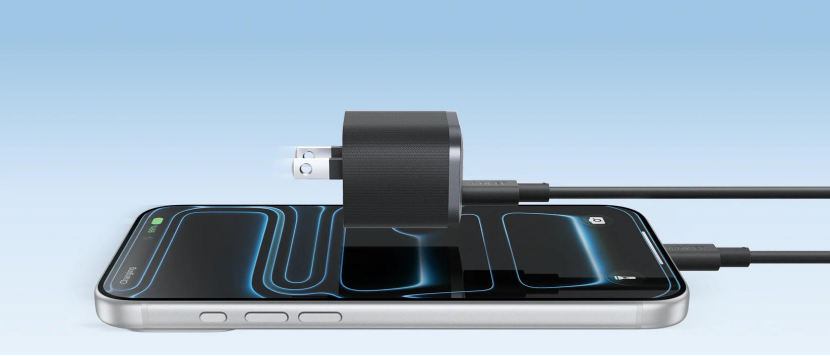
Avoiding the “Accessory Not Supported” warning is mostly about building small, consistent habits around charging. Using intact cables, keeping ports clean, updating software, and paying attention to power sources can prevent most issues before they start. When people search for reliable solutions or even look into discussions about the best iphone 17 chargers, the underlying lesson is not just speed or convenience but long-term compatibility and safety, which is why many everyday users naturally gravitate toward established options like Anker that focus on stable power delivery. These choices reduce uncertainty and make charging feel boring again, in the best possible way. With a little awareness, this warning can become a rare exception rather than a recurring frustration.